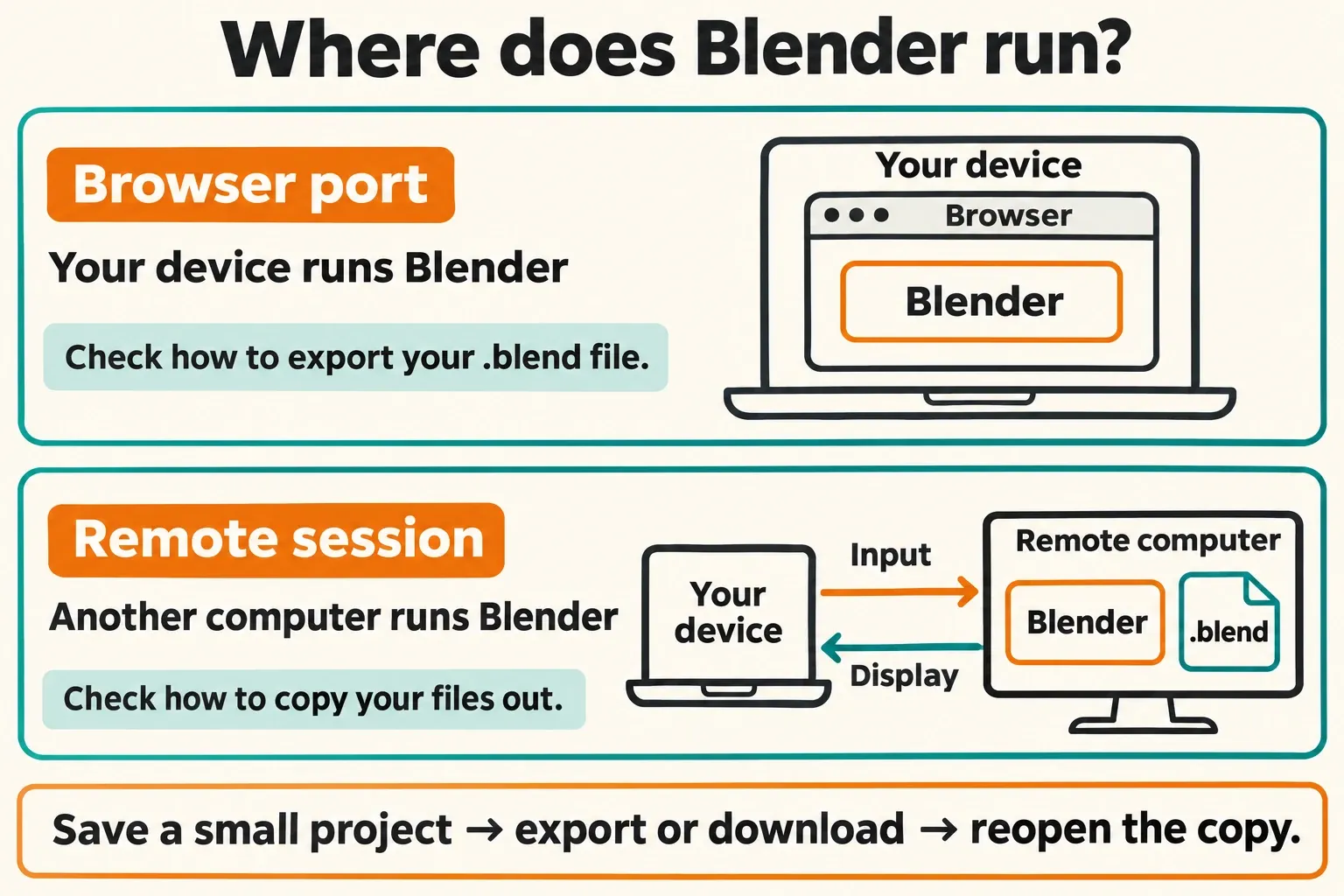
You can use Blender online through a third-party browser port or by controlling Blender on another computer. Those routes use different hardware and save files in different places. Official stable downloads remain desktop applications for Windows, macOS and Linux; Android tablet support is in development, while the iPad project is on hold and iOS remains under consideration in the newer tablet roadmap.
I'd start with a remote connection to a computer you already control if you need your existing Blender version, add-ons and projects from a tablet. For a quick browser experiment, a local browser port is worth considering—but prove that you can save and retrieve a small project before building anything you need to keep.
Choose by where Blender runs
| Route | Where the work runs | What to establish first |
|---|---|---|
| Official desktop Blender | Your Windows, macOS or Linux computer | Supported hardware and a local project folder |
| Browser port, such as Puter's WebAssembly build | Your device, inside the browser | Browser graphics support, usable controls and an exported project you can reopen |
| Remote desktop or cloud workstation | Another computer; your device sends input and receives its display | Host hardware, connection quality, file transfer and session persistence |
| Experimental Android build | The Android device | The particular demo's limitations; it isn't the stable desktop release |
| Native iPad Blender | A development project, rather than a released stable download | Current official project status; don't buy an app on the assumption that it is the official port |
The official installation guide lists the three desktop operating systems. A browser service, extension or tablet app using “Blender” in its name needs a separate check of its developer, version and file support.

A browser port still needs your device's resources
Puter's Blender in the Browser describes Blender compiled to WebAssembly with a WebGPU backend and rendering inside the browser tab. Its launcher also offers software rendering with an explicit warning that it will be extremely slow. Opening that page doesn't rent a remote graphics card: this route still depends on the device running the tab.
Start with an empty scene. Check whether the page launches normally, the viewport updates, menus remain readable and you can select and transform an object. Then try the operation you need: editing a mesh, assigning a material or rendering a small frame. A responsive startup cube doesn't establish that a large textured scene, simulation or add-on will work.
Next, find the service's way to move a saved project out of its environment. Blender's File Browser may show a virtual location rather than a folder you can browse from your operating system. If you can't identify a download, export or other documented retrieval route, keep the session disposable. Treat storage persistence, supported devices and extension compatibility as features to verify in that particular port.
For a managed school computer or Chromebook, check the permitted software and remote-access options before choosing a route. A browser tab doesn't change the institution's policy. If the only obstacle on your own Windows computer is installer permissions, the official ZIP package can run after extraction without administrator rights. It still downloads and runs desktop software, so it doesn't solve a ban on downloads or executable files.
Check a service's actual Blender version and developer
Online access isn't necessarily free. Blender's free-software licence grants rights to use, modify and share the application; it doesn't make someone else's hosting, storage or support free. Check the terms of the particular service before planning around a free session.
A hosted product can expose a much older Blender than the current desktop release. For example, rollApp's Blender listing identifies version 2.81 and says a Premium subscription is required. That makes it a poor starting point for following a current tutorial whose controls and features depend on a newer release. Check the app's own Blender menu → About Blender when available, rather than relying on the search-result title.
The “Blender 3D creation suite” Chrome extension is listed under ODGroup and links to RunApps. It isn't an official Blender Foundation distribution. Read the publisher, permissions, account requirements and file-transfer instructions before adding an extension or uploading work. A store listing's privacy declaration doesn't establish how a particular project will be handled.
Also check the file format. A browser editor advertising OBJ, STL or glTF import can be useful for mesh edits, but that doesn't establish native Blender project or add-on compatibility. The Online 3D Editor landing page, for example, lists mesh interchange formats and browser projects. If your goal is to preserve a Blender scene, require a working .blend round trip rather than accepting a similar-looking viewport.
Use a remote computer when you need desktop Blender
With a remote session, Blender runs on the host computer. The phone, tablet or lightweight laptop handles the remote display and your input. This can give you access to hardware and files on a stronger machine, but only if that host is available and the connection is usable. It doesn't increase the processing power of the client device itself.
I'd use a computer you already own before paying for a cloud workstation: you can keep the Blender build and project location under your control, then judge whether remote input suits the work. Renting hardware becomes relevant when you need a host you don't have, rather than simply a way to view your existing desktop.
Example: connect to your own computer
Google's Chrome Remote Desktop instructions support a Windows, macOS or Linux host. The host needs the remote-access component installed and the required system permissions. If installation is prohibited on that computer, this example isn't a workaround for that restriction.
- On the host, open Chrome Remote Desktop's Remote Access page and follow Set up Remote Access → Download. Complete its installation and access setup.
- Open Blender on that host. Put a small test project in a folder you can identify and retrieve independently of the remote session.
- On another computer, open the Remote Access page, select the host and enter its PIN. On Android, Google's instructions use the Chrome Remote Desktop app and Menu → Remote Access.
- On iPhone or iPad, follow the iOS access instructions. They also describe browser access and adding the page to the Home Screen for a full-screen view.
- Check selection, orbit, pan, zoom, numeric entry and a modifier shortcut. Use an external keyboard and pointing device if touch controls make these operations awkward.
- Save the project on the host, transfer a copy through your chosen file-transfer route, and open that copy outside the remote session.
- When finished, disconnect using the remote client's controls. If you also rent the host, separately check its shutdown and billing controls.
Google's Android input guide uses a virtual trackpad by default: a two-finger tap is right-click and a three-finger tap is middle-click. These are remote-client gestures. They don't promise that dragging, modifier combinations or pen pressure will behave like a locally connected Blender tablet. The additional direct-touch modes described there apply to Windows hosts.
For Blender navigation itself, use the viewport orbit, pan and zoom controls as the reference. If a shortcut opens a browser function or disappears into the remote client, try the corresponding Blender menu command. Distinguish missing input from a Blender tool failure before changing scene settings.
Separate connection delay from Blender workload
Run two checks. First, move the pointer, open menus and orbit a simple scene. Then perform a small render or another operation relevant to your project. Delayed clicks with otherwise quick scene processing point toward the display/input route; sluggish scene evaluation on the host calls for a different investigation. A faster rented GPU won't necessarily fix an unstable connection.
Compare the same small scene at the host directly if that is possible. Change one condition at a time—connection, stream resolution or scene complexity—so you know which change helped. There isn't a useful universal “good enough” latency or internet-speed promise for every modelling, sculpting and playback task.
Before paying for a cloud workstation
Confirm that the product provides an interactive desktop, rather than only a render-submission service. Then check the actual plan and session, not just a GPU name on the home page.
| Check | Evidence you need before relying on it |
|---|---|
| Blender and add-ons | Required version; permission to install dependencies; a successful operation from each essential add-on |
| Graphics and rendering | The GPU exposed to the session and the rendering backend your scene can actually use |
| Cost | Compute, storage and transfer charges; minimum charging period and any idle or stopped-instance charges |
| Session lifetime | What survives disconnection, restart, shutdown, subscription expiry and account deletion |
| Project retrieval | A demonstrated way to copy the project and dependencies out before the session or storage expires |
| Privacy and access | Terms suitable for the files you intend to upload, plus control over who can access the desktop |
Closing a remote-viewer tab ends your view of the machine; it doesn't establish that a paid instance is powered off or that all charges have stopped. Use the provider's documented instance controls and inspect its billing state. Keep the exported project before deleting any remote disk.
Prove that your project survives the session
The useful acceptance check is a reopened copy, not a “Saved” message. In a browser port, the first save can stay inside the browser environment. In a remote desktop, it normally addresses the host's filesystem. Neither is automatically a copy in your phone's Downloads folder.
- Create a recognisable test. Rename an object and change its shape or material so you can distinguish this project from the startup file.
- Save to a known location. In desktop Blender, use File → Save As and choose a name such as
remote-test.blend. In a port, establish which locations the port exposes. - Check dependencies. If the real task uses textures or linked assets, include a small representative example. Use the documented File → External Data tools to report missing files and pack resources where appropriate, or transfer the external files with the project.
- Retrieve the saved copy. Use the port's download/export mechanism or your remote host's file-transfer route. Identify the resulting file in storage you control outside that session.
- Reopen and inspect it. Check the named object, material, required external files and a small output. Keep the original until that copy works in the Blender version you intend to use.
A saved render image proves that an image survived; an exported STL proves that a mesh survived. Neither proves that the editable Blender scene survived. Keep a .blend project when you need Blender objects, modifiers and scene organisation, alongside any interchange format the next application requires.
Version compatibility belongs in this check too. Blender's file compatibility guidance warns that newer files can lose features when opened in older releases, and some version boundaries prevent opening them at all. Work on a copy when moving between a hosted older build and a newer desktop installation. If you need to change versions, follow the separate Blender update and rollback workflow.
What about Blender on Android, iPad or iPhone?
Separate native development from remote access. A tablet can display a remote desktop without having a native Blender release. Conversely, an experimental native build can exist without being ready for an ordinary project workflow.
Blender's Android platform tracking issue describes initial platform work and a Blender Conference 2026 demo. That demo explores touch navigation, pen input and a modifier wheel. The developers explicitly say the demo branch is a sandbox and isn't representative of a final product. Treat it as an experiment, with copies of files, rather than assuming desktop add-ons, graphics features or file handling are production-ready.
The iPad/iOS tracker says the project is on hold. The newer Tablet: Path to Release roadmap focuses on Android and says iOS is under consideration. Its work includes platform support, touch interaction, desktop file hand-off and eventual shipping. These are development plans, not a stable iPad download or a promised release date.
For an iPhone or Android phone, I'd reserve remote Blender for a specific check or a small correction when a larger screen isn't available. Dense panels and repeated modifier input make a phone a demanding place to build a scene. Try the exact operation before committing to that arrangement; “the desktop is visible” is a much weaker requirement than “I can edit this mesh comfortably.”
If your real aim is touch sculpting, a dedicated tablet sculpting app can be a better fit. Decide how the result will reach desktop Blender first: a mesh interchange file doesn't preserve an entire Blender project. Keep the original tablet project and verify geometry, scale and appearance after import before deleting either copy.
Online assets don't turn desktop Blender into a browser app
Blender's Preferences → System → Network → Allow Online Access setting permits internet access for features and add-ons that follow it. The System preferences manual also warns that Blender can't prevent a third-party add-on from ignoring that setting. It isn't a switch for moving Blender or rendering to a cloud computer.

Downloading a material, brush or model into desktop Blender leaves the editor running on that desktop. Choose an online library for its assets; choose a browser port or remote workstation for where you need to run the application. If brushes are your actual task, the brush and asset-library guide covers that workflow separately.
When an online session doesn't do what you expected
| Symptom | Check next |
|---|---|
| Browser port won't launch or offers software rendering | The port's browser/device requirements and graphics diagnostics; use a small scene before trying another large upload |
| Remote host is dimmed or unavailable | Whether it is online, reachable and permitted by the account or network administrator |
| Menus react late or shortcuts don't reach Blender | Connection/display behaviour and the remote client's input mode; try Blender's menu command |
| Saved file is missing on the phone or laptop | The port's virtual storage or the remote host's folder, then the explicit download/transfer step |
| Project opens without textures or with changed features | External-file paths and the receiving Blender version; reopen the preserved original before overwriting anything |
Choose the route that passes your actual edit and file-retrieval check. For an existing scene, keeping a known Blender version and a verified project copy matters more than whether the launch button happens to sit in a browser.